Transform Your Linux Desktop: A Guide to Achieving the macOS Sonoma Look
Discover how to give your Linux distro a macOS Sonoma makeover. This guide covers installing themes, customizing icons, setting up dynamic wallpapers, and tweaking your dock. Enjoy the sleek Apple aesthetics while keeping Linux's flexibility and power.

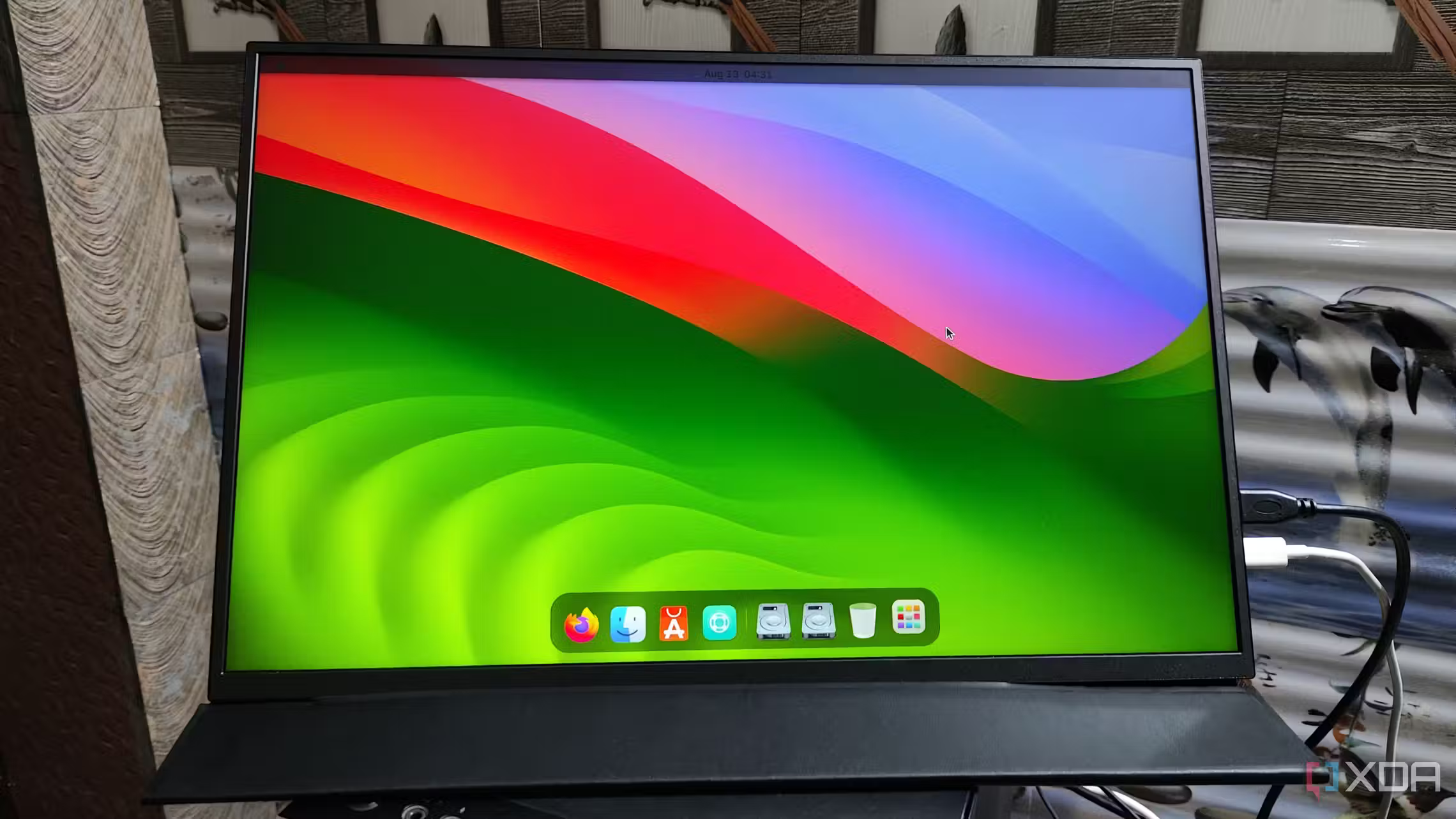
In September, Apple released the macOS Sonoma update, which made the Mac environment look better. Even though it's hard to get the latest version of macOS to work on hardware that isn't made by Apple, you can make it work on a Linux system because this open-source operating system lets you change almost everything about it. We have put together all the steps you can take to make your favorite Linux distribution look like macOS in this guide.
Install GNOME Extension Manager and Tweaks

If your Linux distribution uses the GNOME desktop, you can change the way it looks by adding some applications. Get the GNOME Shell Extension Manager to do that. The good news is that the Linux interface makes this easy. All you have to do is execute the following command:
sudo apt install gnome-shell-extension-manager -yNext, you should install the GNOME Tweaks app. As the name suggests, this is a tool that lets you change the appearance of the Ubuntu desktop. Simply enter the following command in the terminal:
sudo apt install gnome-tweaks -yAdd a macOS theme
Once you’re done running the GNOME Shell Extension, it’s time to download and set up a macOS theme. You can either grab a theme from Pling or run Git and clone a repository from GitHub. MacOS Sonoma by BRAHIMSALEM on Pling is a great theme, but you can also download Linux-MacOS-GNOME by vinceliuice from GitHub, too.
- Download macOS Sonoma by BRAHIMSALEM from the Pling store.
- Once it has finished downloading, you can extract its contents to the .themes folder located in the Home directory of your system.
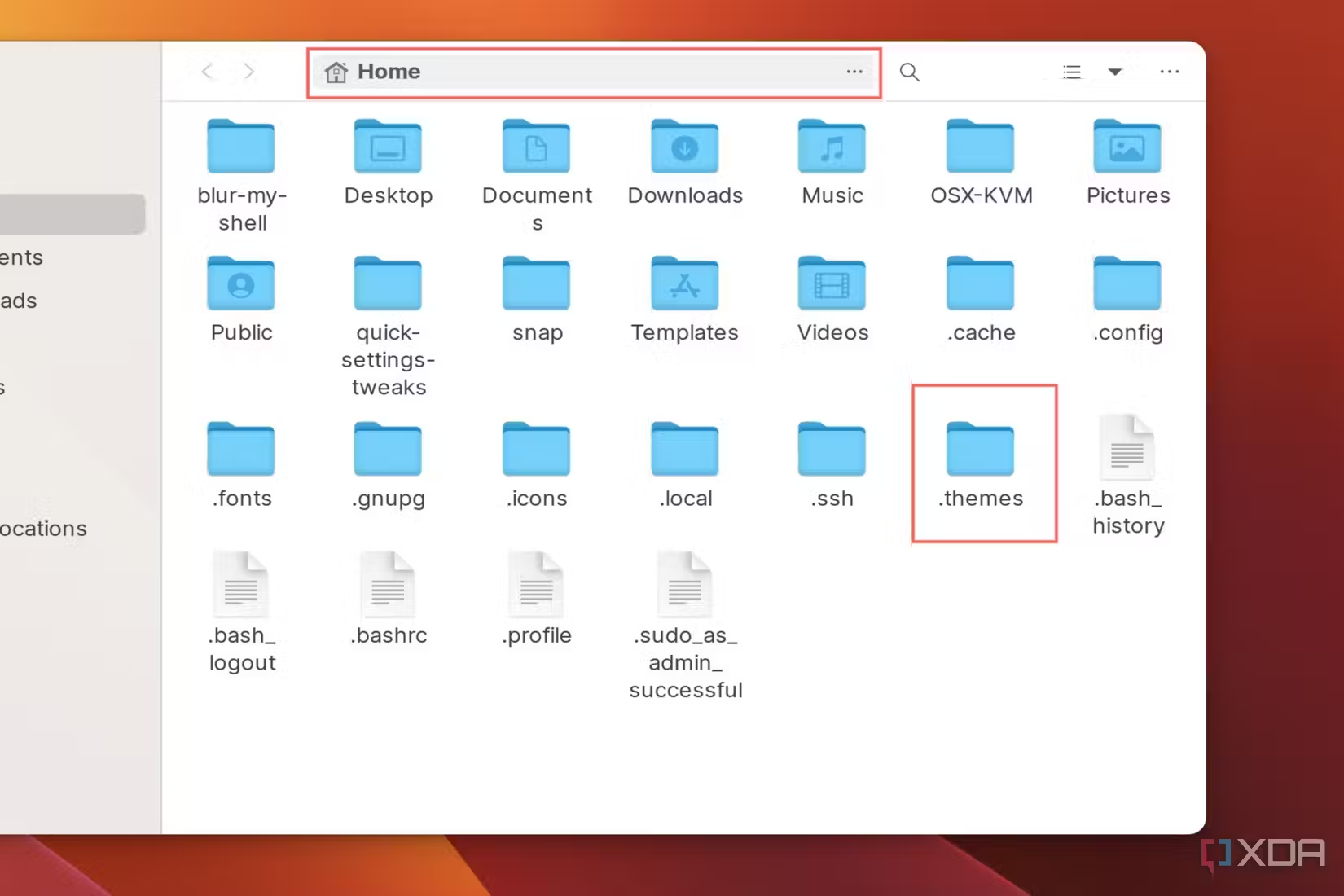
- The .themes folder may be hidden by default, so press Ctrl + H to make it visible in the file manager.
If the folder still doesn't show up, you must create a new directory by entering the mkdir ~/.themes command in the terminal.
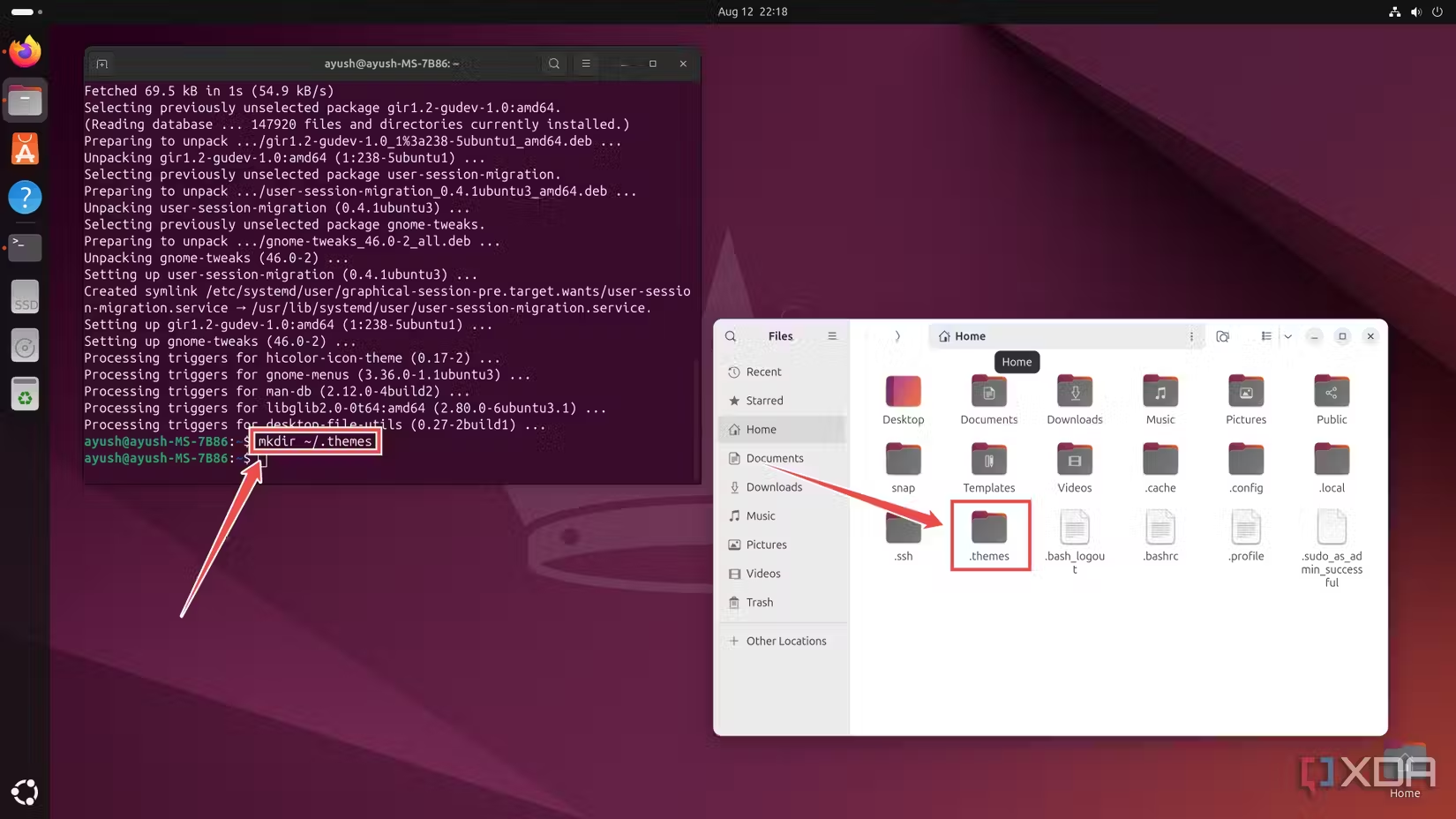
With the themes downloaded, you’ll need to install the user themes extension to apply the theme to the entire interface.
- Open the Extension Manager app you downloaded earlier.
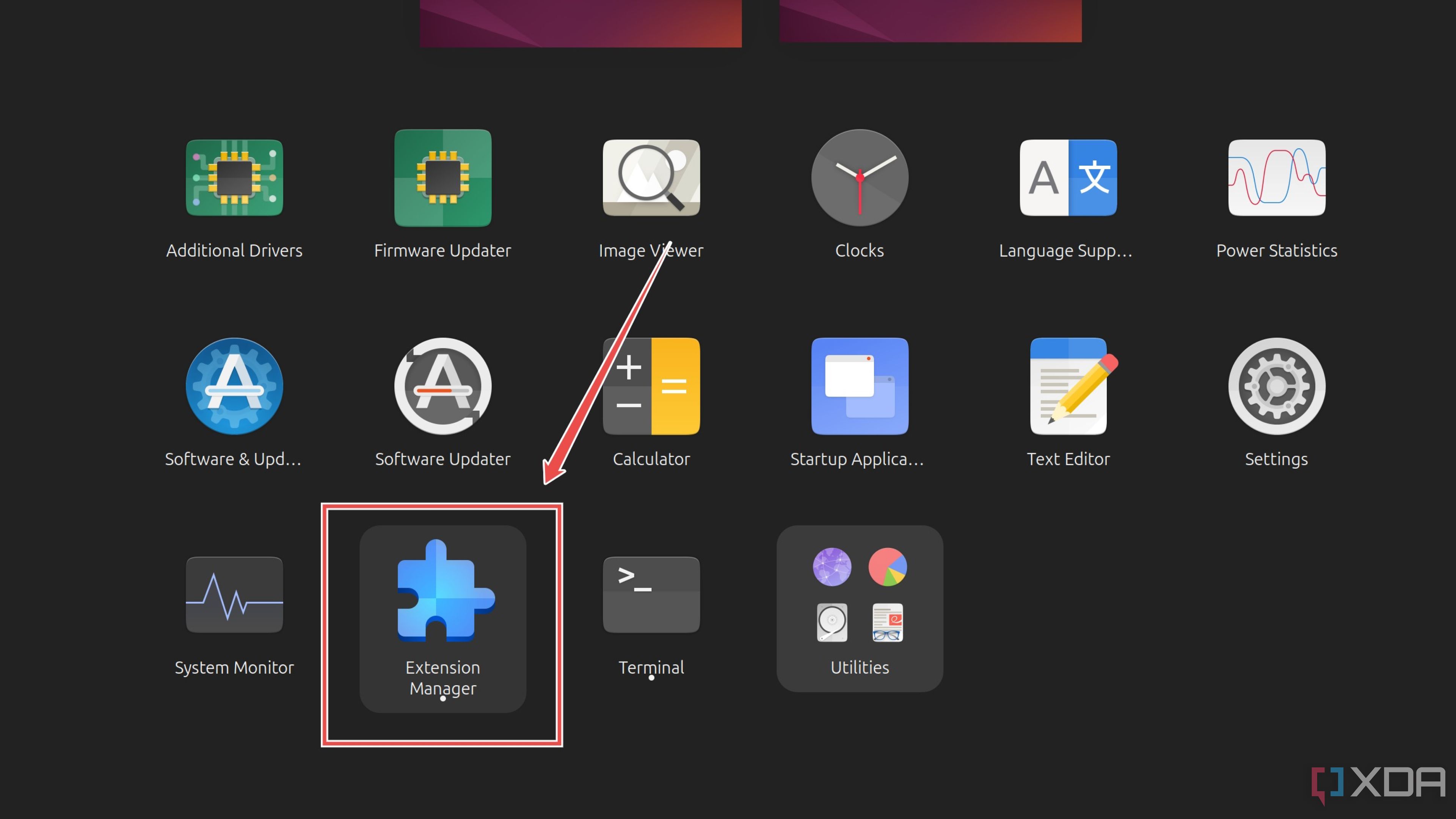
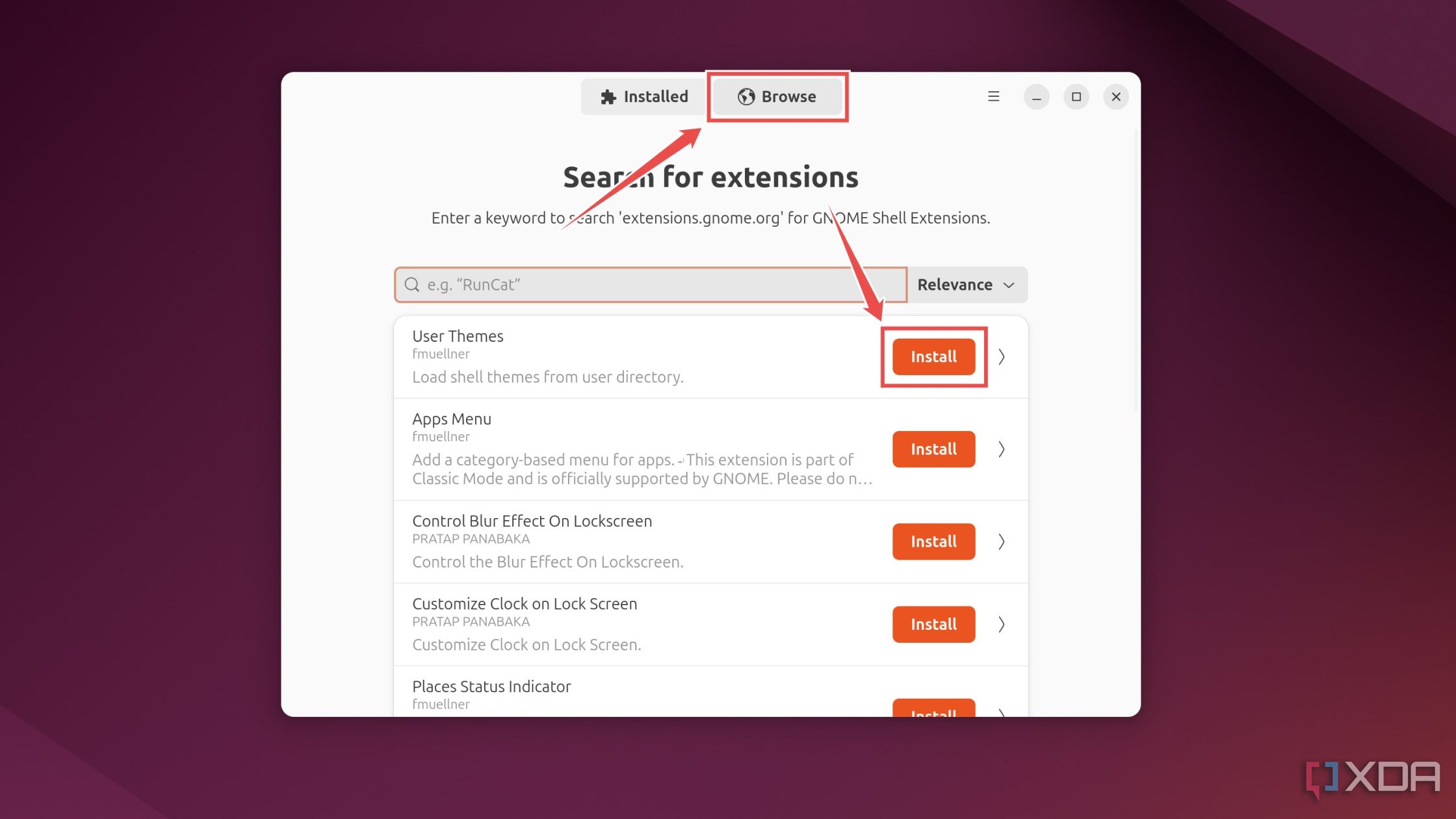
- Head to the Browse tab and search for user themes.
- Press the Install button next to the User Themes extension.
Finally, you can apply the theme to your GNOME desktop via the Tweaks app.
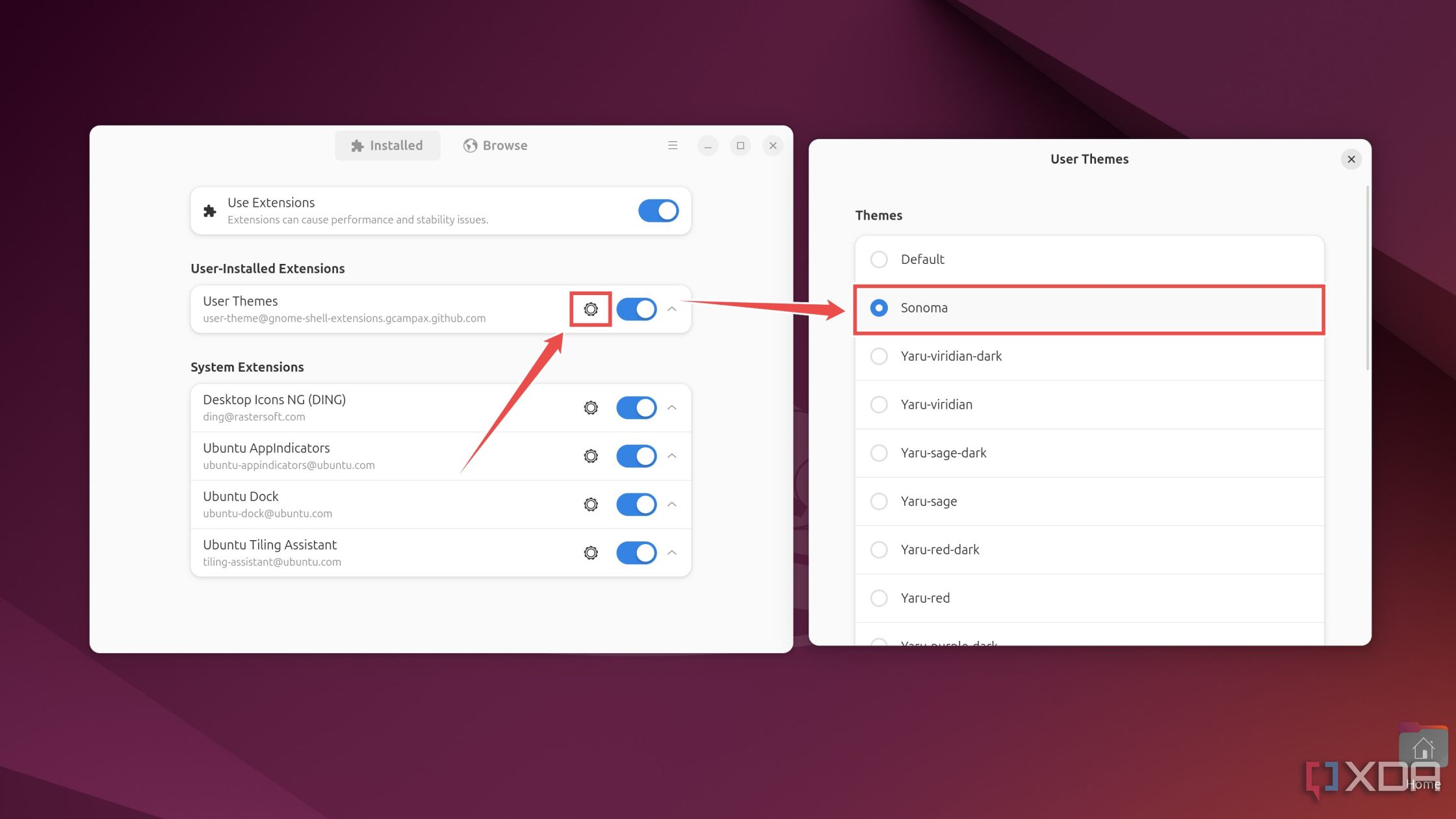
- Inside the Extension Manager, head back to the Extensions tab.
- Click on the Settings icon next to User Themes and choose Sonoma in the pop-up menu.
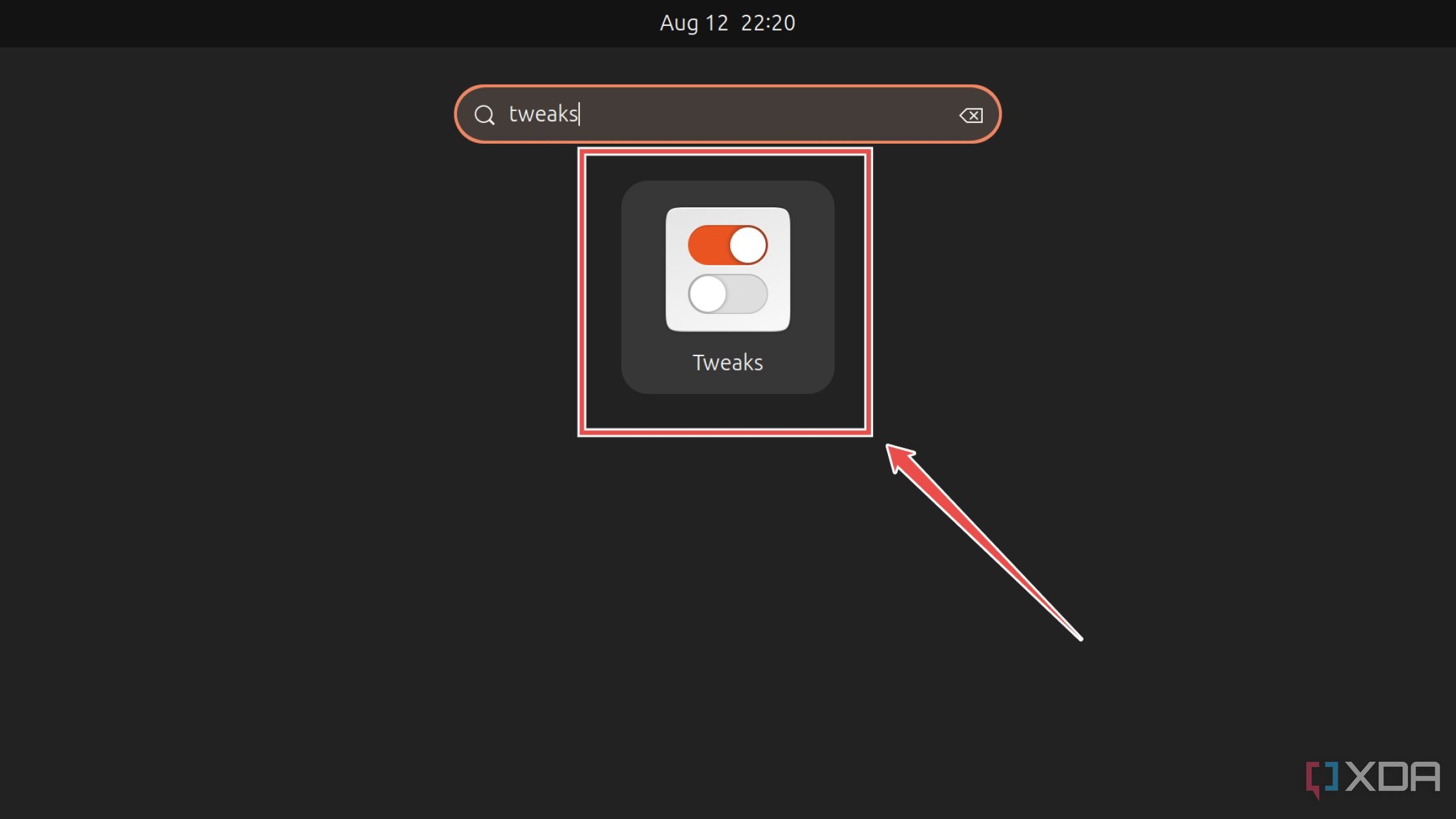
- Open the Applications menu, type tweaks into the Search Bar, and click on the Tweaks app when it shows up.
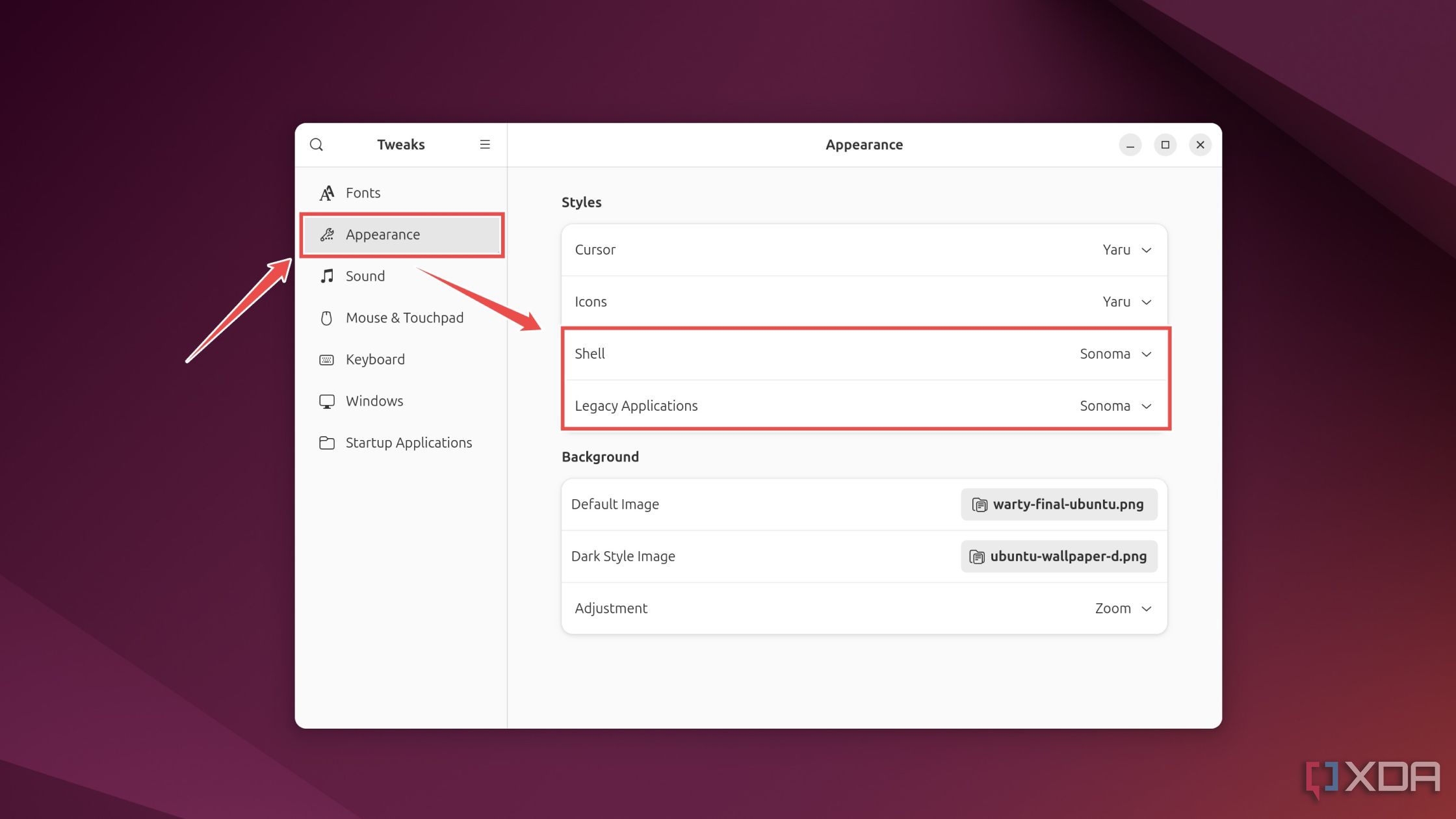
- Navigate to the Appearance tab and make sure the Style options for Shell and Legacy Applications are set to Sonoma.
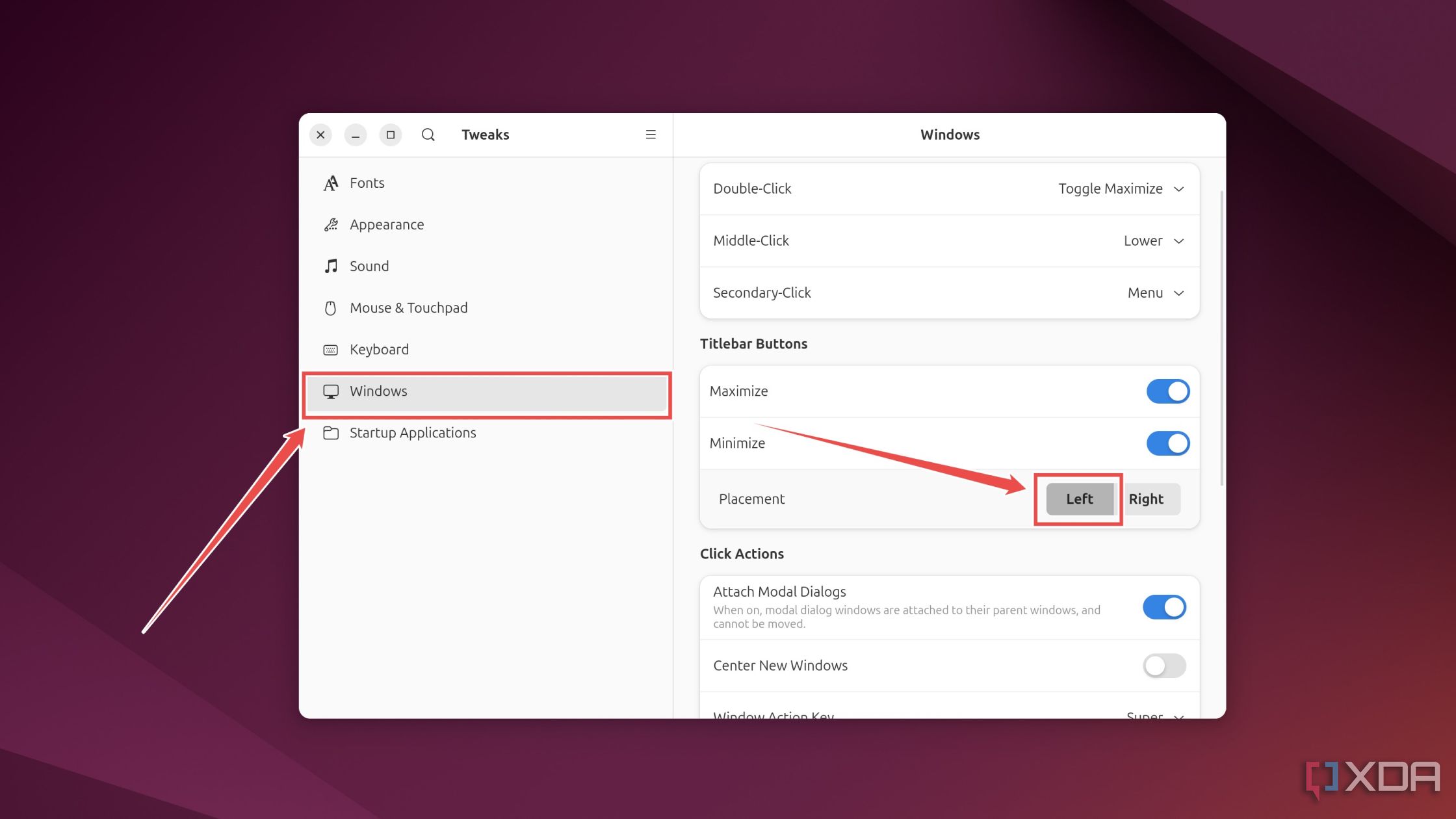
While you're inside the Tweaks app, you can make the title bar appear on the left by following these steps:
- Switch to the Windows tab.
- Choose Left as the Placement location for Titlebar Buttons.
Set up macOS icons
After installing the Sonoma theme, you can switch the Linux icons to the ones you’ll find in macOS. I’ve used macOS-Ventura-Icons by abhishek-zambare, but the WhiteSur-icon-theme by vinceliuice also works well.
- Download macOS-Ventura-Icons from the Pling store link.
- Extract the icon pack inside the .icons folder in the Home directory.
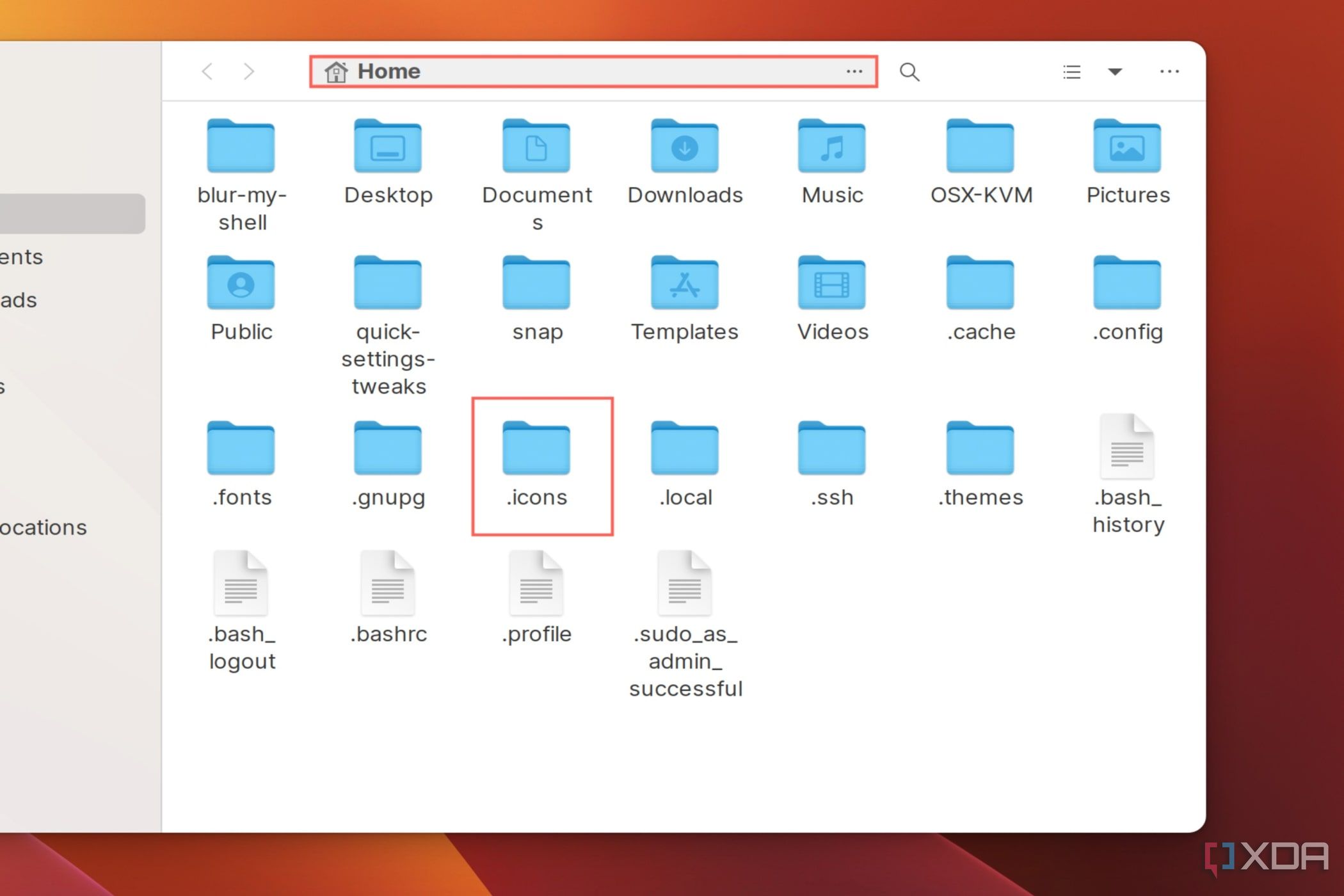
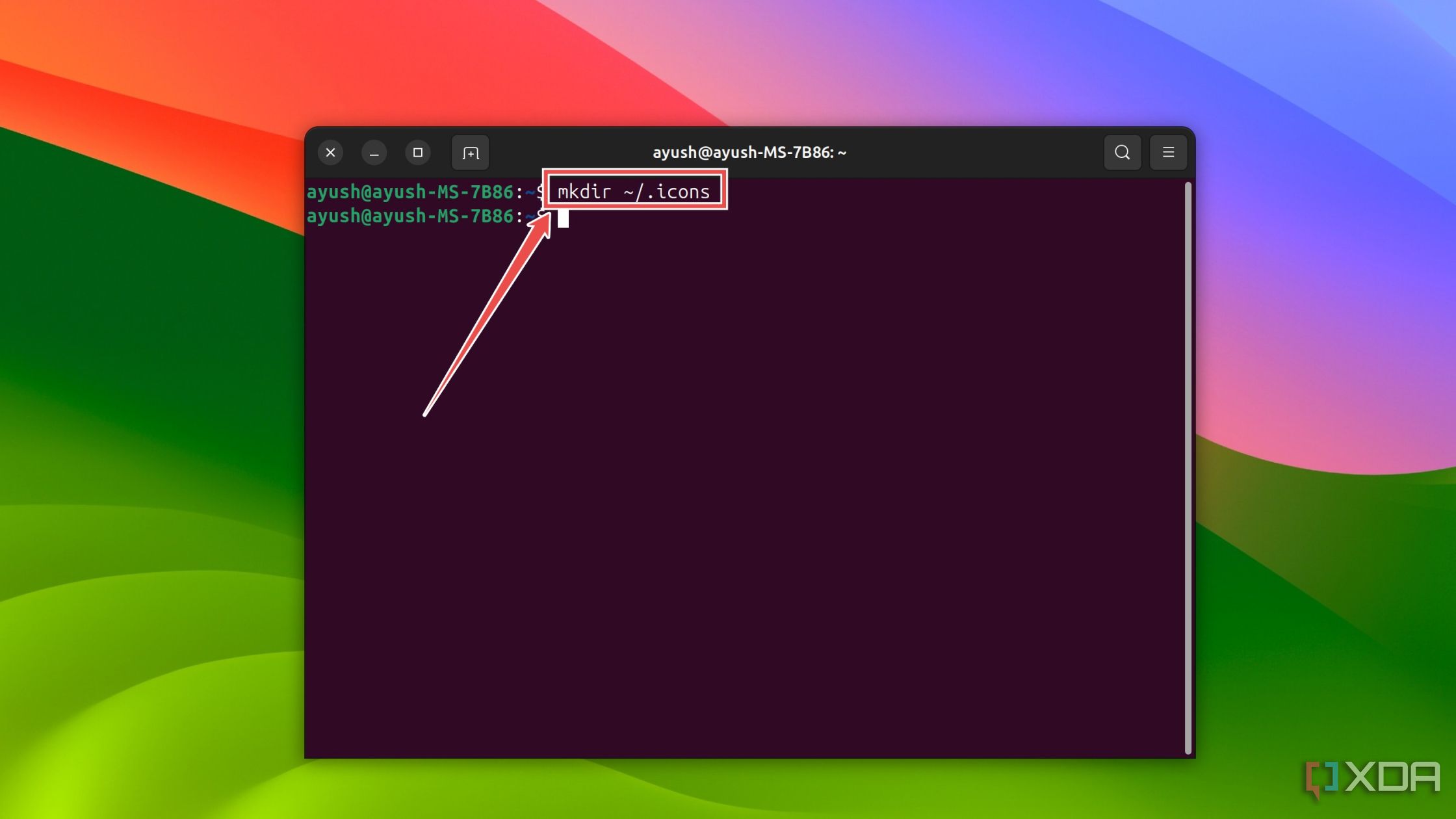
- If you’re unable to find the .icons folder, create a new one using the mkdir ~/.icons terminal command.
- Once again, open the Tweaks app and navigate to the Appearance tab.
- Click on the dropdown menu next to Icons and choose BigSur-Originals-Prime.
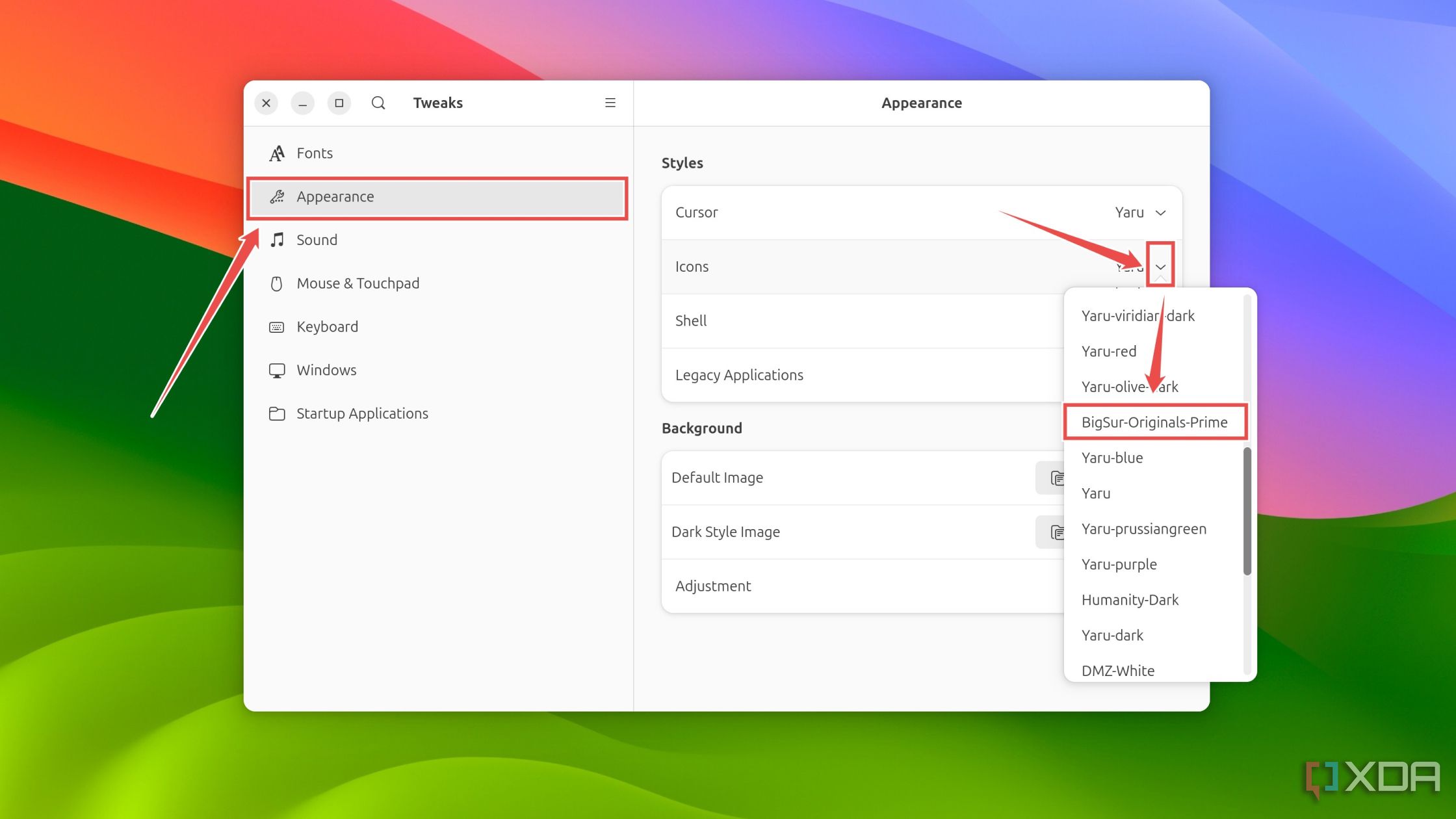
If the icon pack doesn’t show up in Tweaks, you may need to restart your system.
Add dynamic wallpapers
All macOS versions after the Mojave update have featured dynamic wallpapers that change based on the time of the day. You can use the Linux Dynamic Wallpapers package by Saint-13 to mimic this feature on Linux.
- Download the Easy_Install.sh file for the Linux Dynamic Wallpapers package from this link.
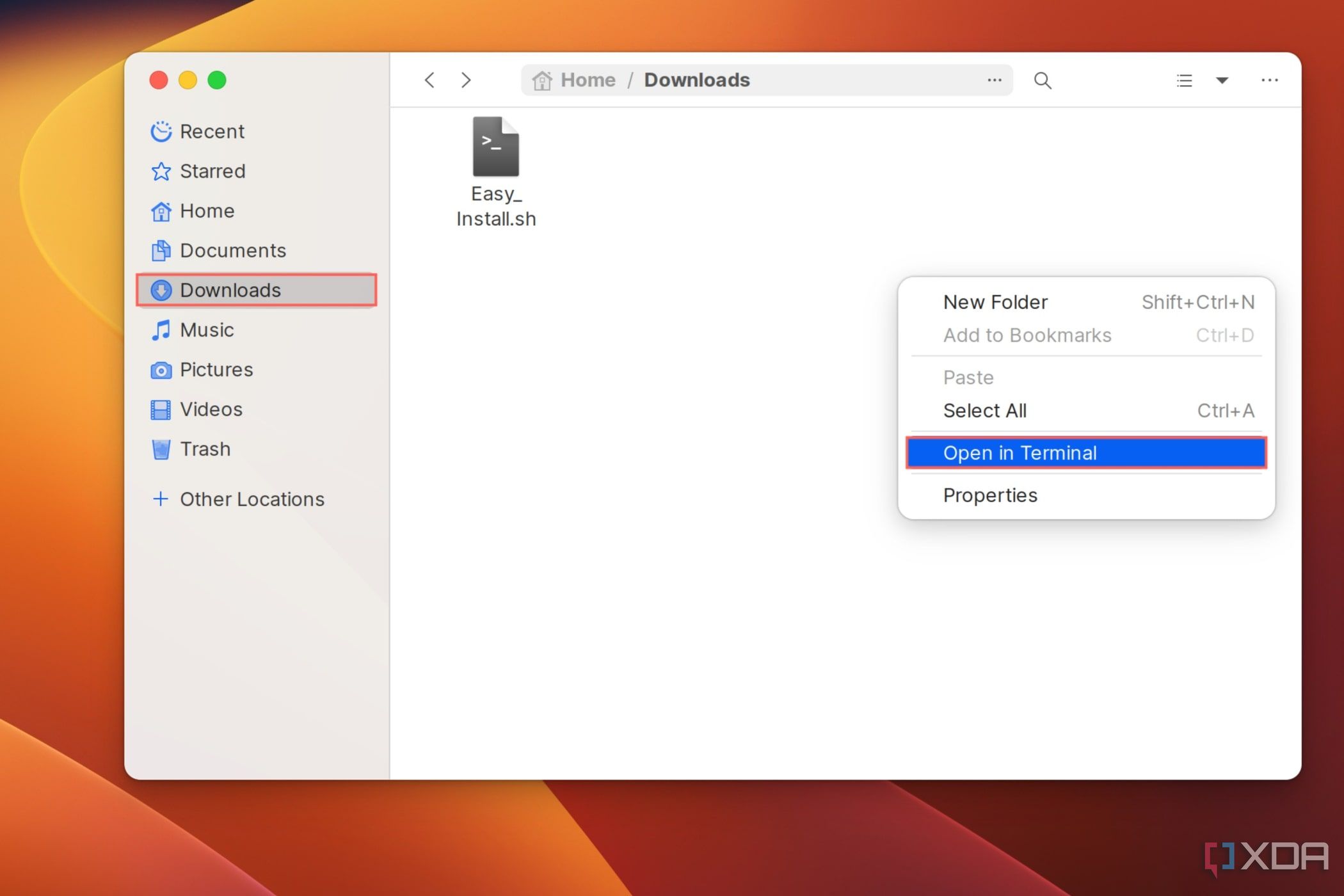
- After heading to the folder where you downloaded the file, right-click anywhere on the file manager and choose Open in terminal.
- Paste the following command in the terminal and press Enter.
curl -s "https://raw.githubusercontent.com/saint-13/Linux_Dynamic_Wallpapers/main/Easy_Install.sh" | sudo bash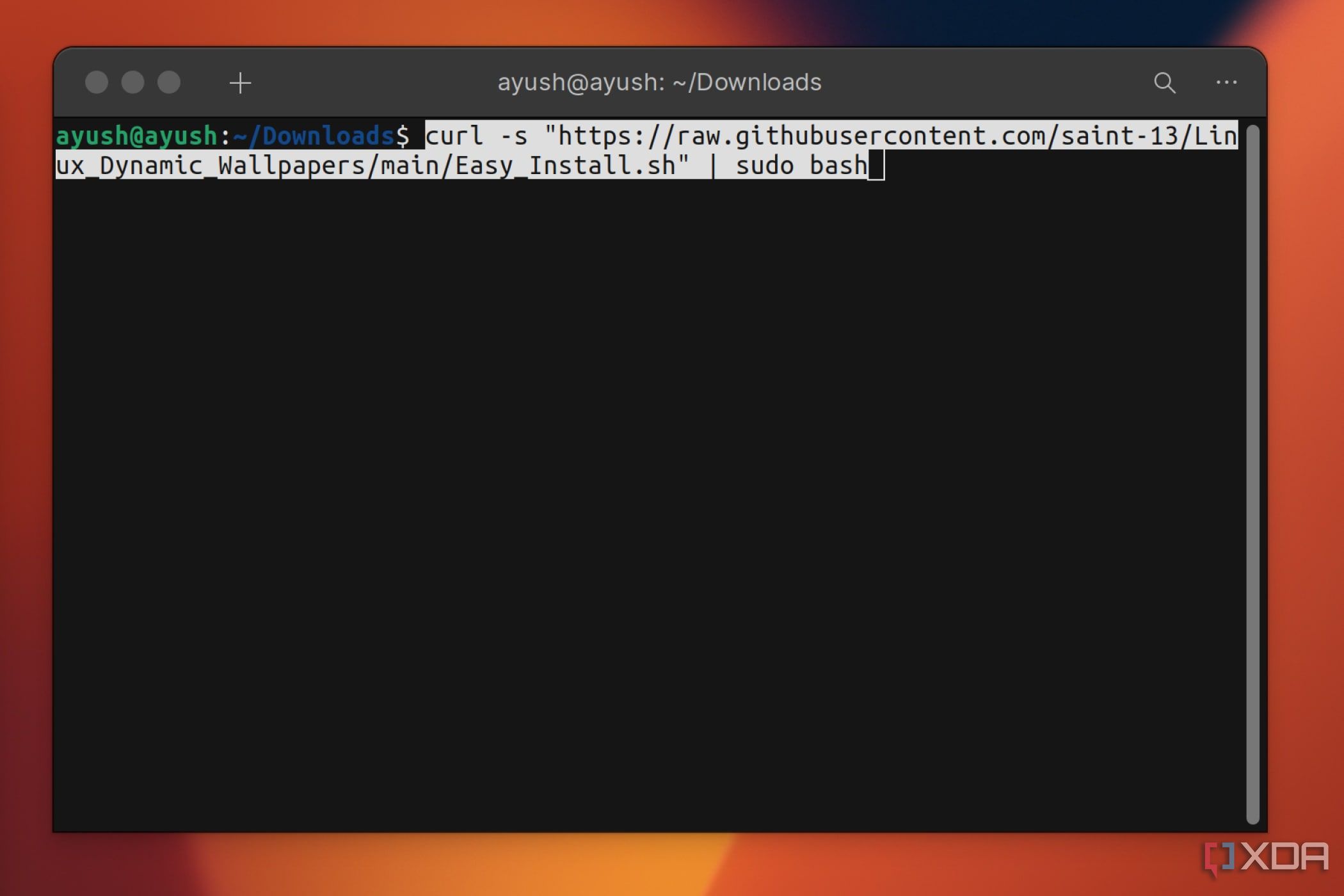
If you're on Ubuntu 24.04 or another distribution that doesn't come with the curl tool pre-installed, you'll have to download the package by executing this command in the terminal:
sudo apt install curl -y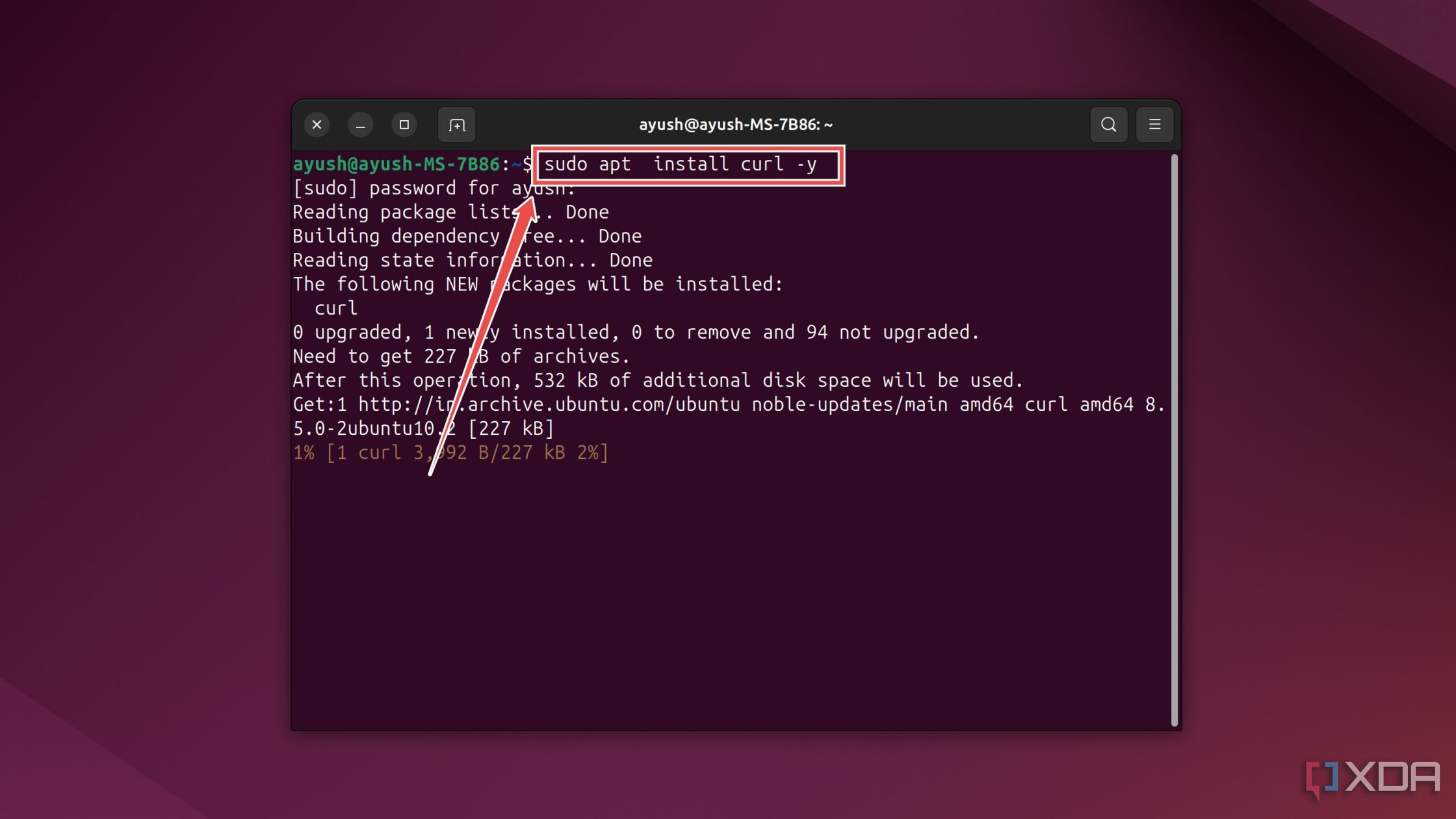
- Once the wallpapers have finished downloading, open the Settings app.
- Navigate to the Backgrounds tab and click on the wallpaper you want to add as the background.
Alternatively, you can grab the Sonoma light and dark wallpapers from the Pling store if you want a quicker solution. Heck, if you're a fan of macOS Sequoia, you can even grab the wallpapers for Apple's latest desktop OS from the Pling store.
Install the Inter font
The customizability of Linux doesn’t just extend to themes, icons, and extensions: you can even add new typefaces to the OS. Unfortunately, Apple’s San Francisco font family is still a proprietary product, so we can’t add download links for it here. But there are a handful of fonts that are quite similar to the San Francisco series featured in Apple's ecosystem. Inter Regular is one such free-to-use font that you can set up by following these steps:
- Download the Inter font from the official link.
- Extract the fonts to the .fonts folder in the Home directory.
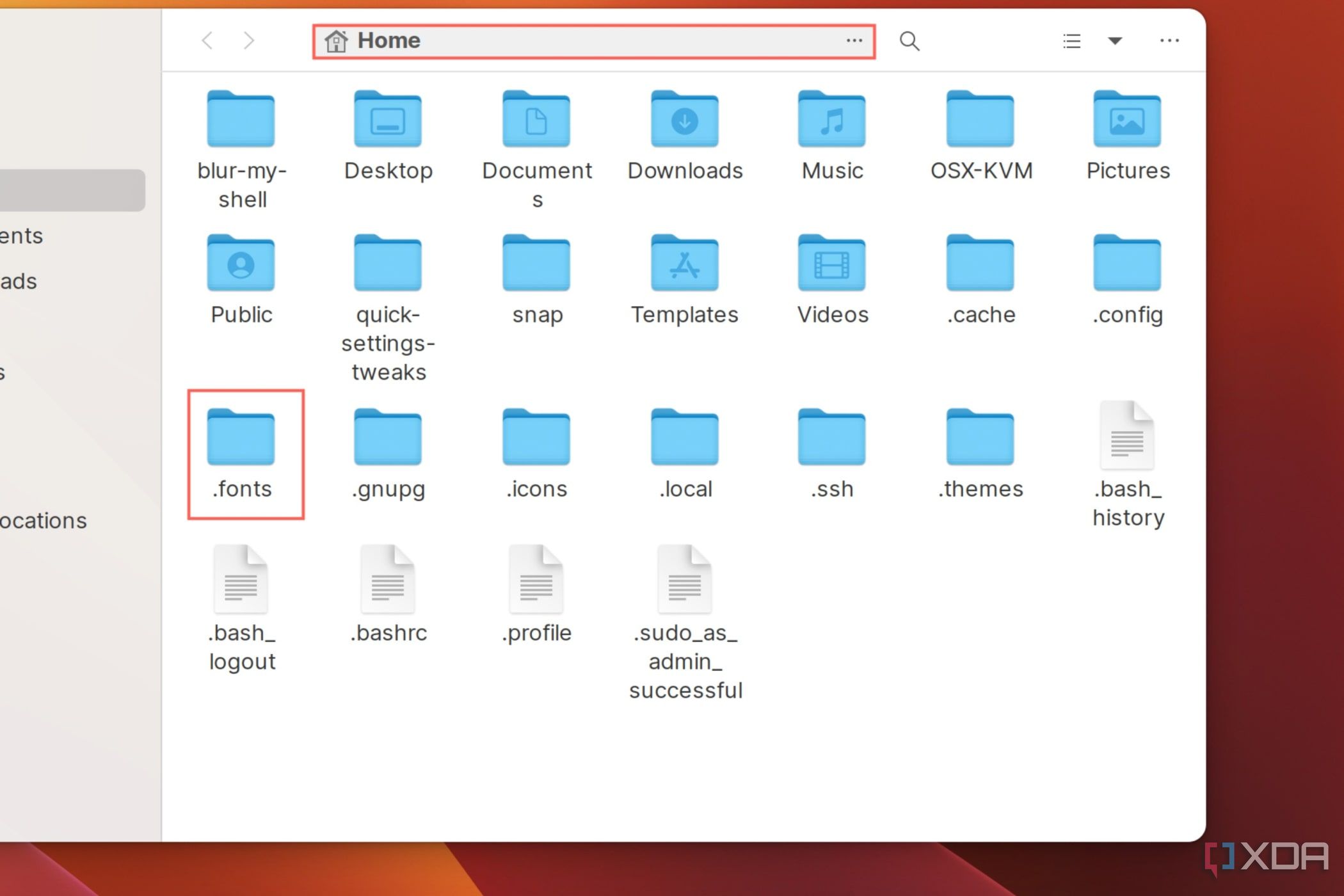
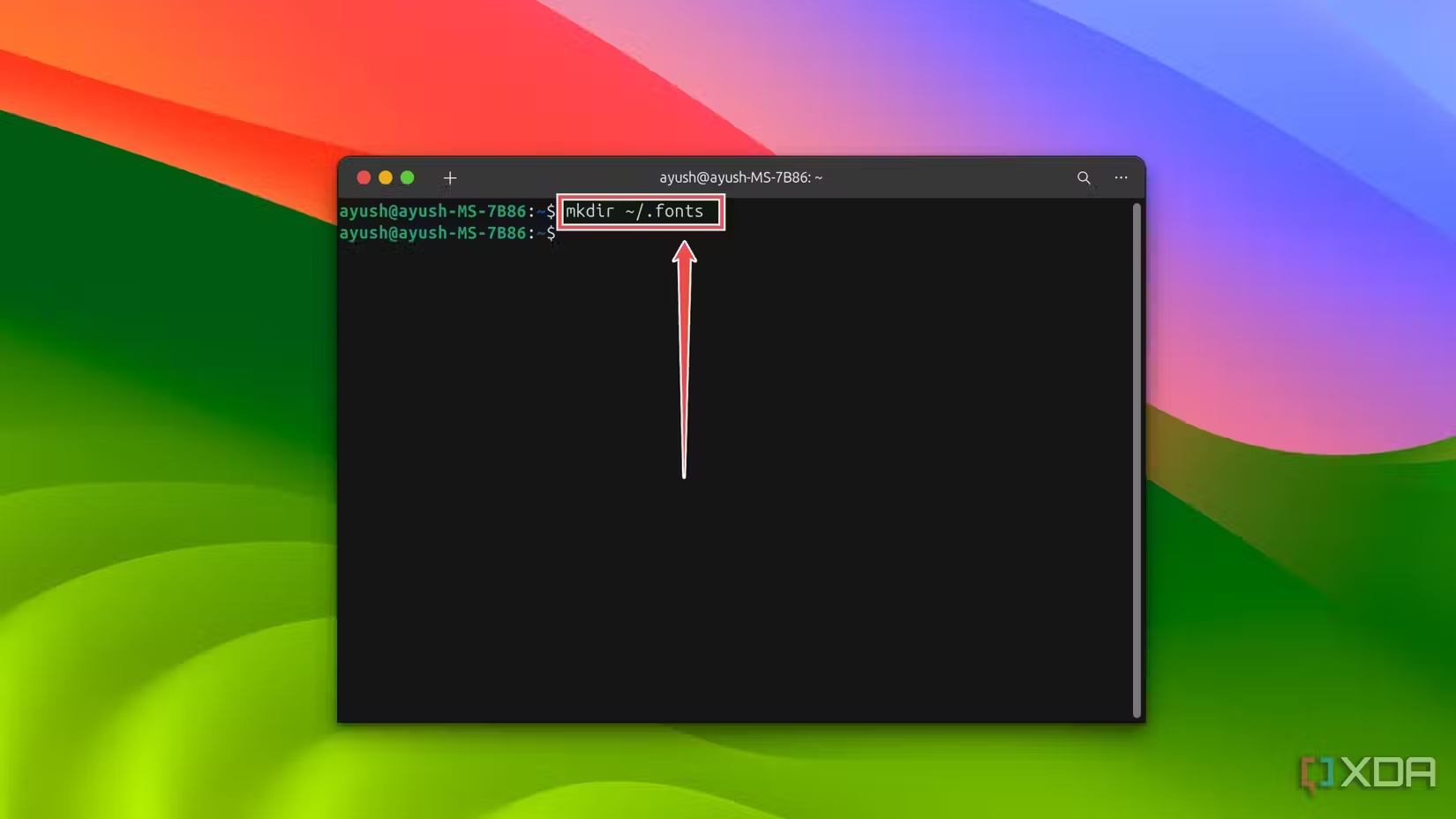
- As always, if the .fonts folder doesn’t appear even after enabling the option to show .folders, run the mkdir ~/.fonts command in the terminal.
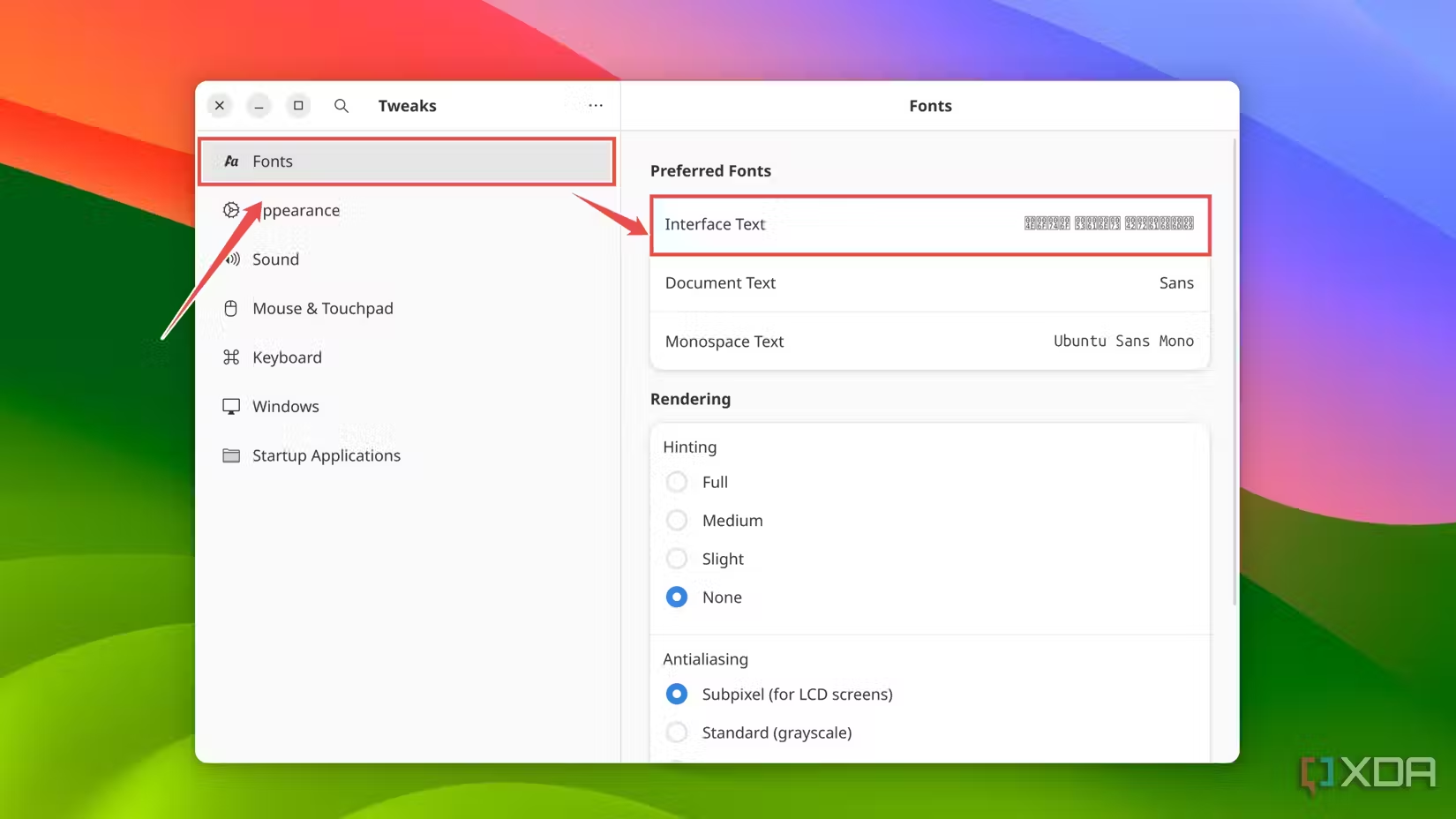
- Launch the Tweaks app, navigate to the Fonts tab, and open the drop-down menu next to Interface Text.
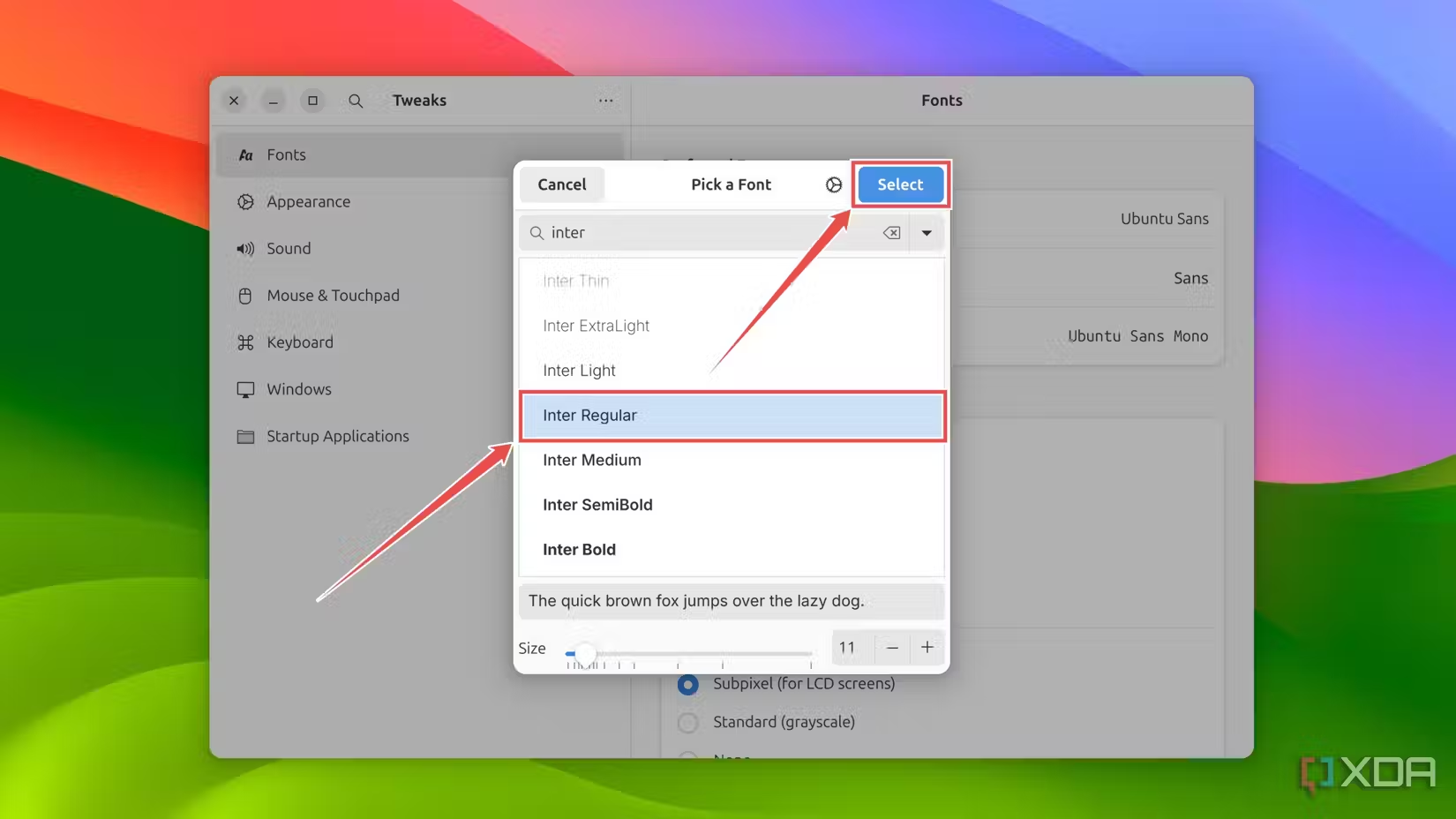
- Pick Inter Regular or any other font you’ve placed in the .fonts folder, and press Select.
Enable the magic lamp effect extension
MacOS has a Genie effect that causes an application window to shrink into the dock when you click the minimize button. The Compiz alike magic lamp extension allows you to set up the Genie animation on Linux.
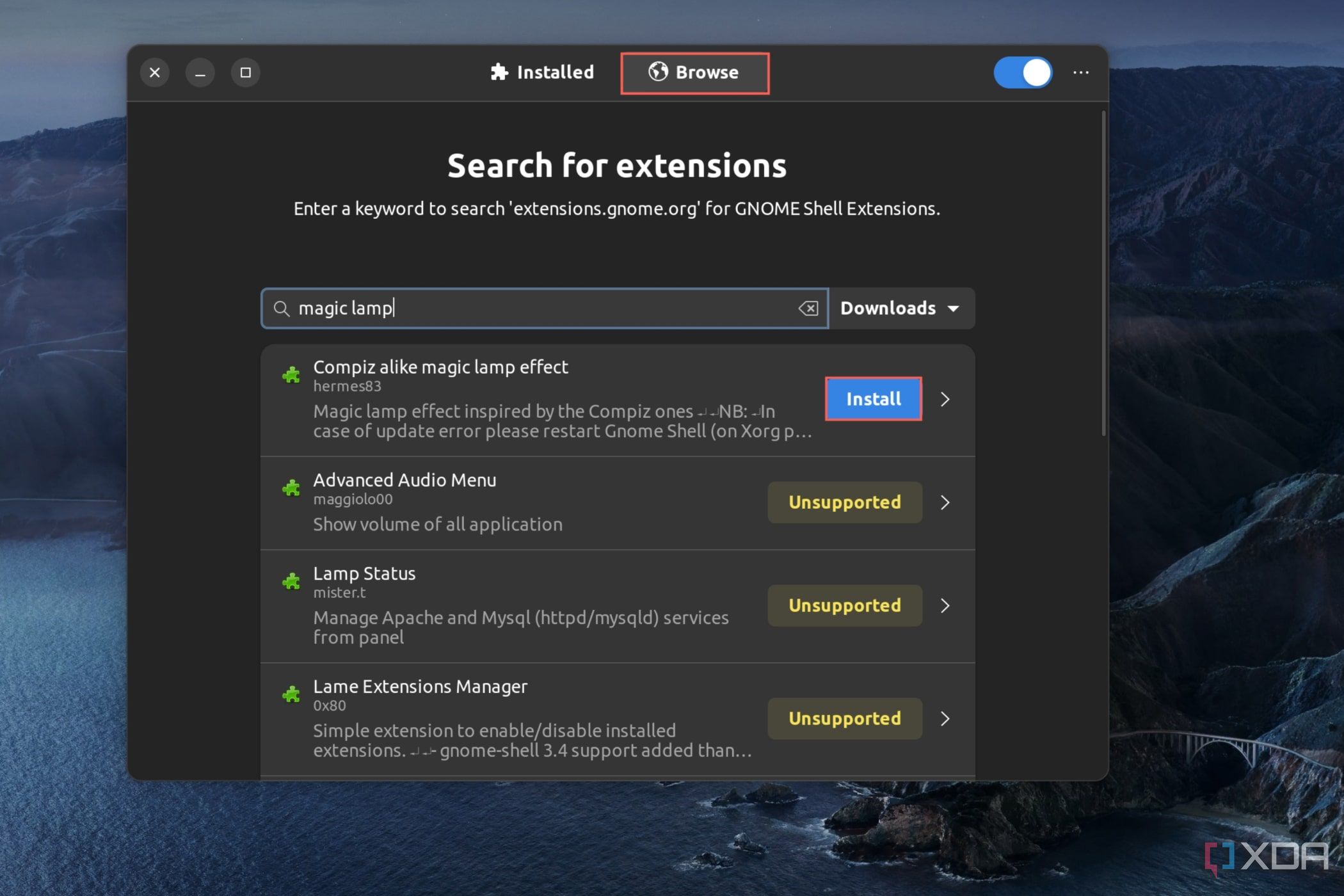
- Open Extension Manager and click Browse.
- Search for magic lamp and click on the Install button adjacent to Compiz alike magic lamp effect.
You can follow a similar procedure to install the Blur My Shell and Quick Settings extensions. The former adds a blurring effect to the shell while the latter changes the appearance of the quick settings menu to a more macOS-like layout.
Customize the Dock
Finally, it’s time to modify the Linux taskbar to make it match the macOS application dock. You can install the Dash to Dock extension from the Extensions app for this reason.
While this extension works well on most Linux distros, it’s known to cause problems on Ubuntu. As a workaround, you can use the Settings app to change the style of the taskbar.
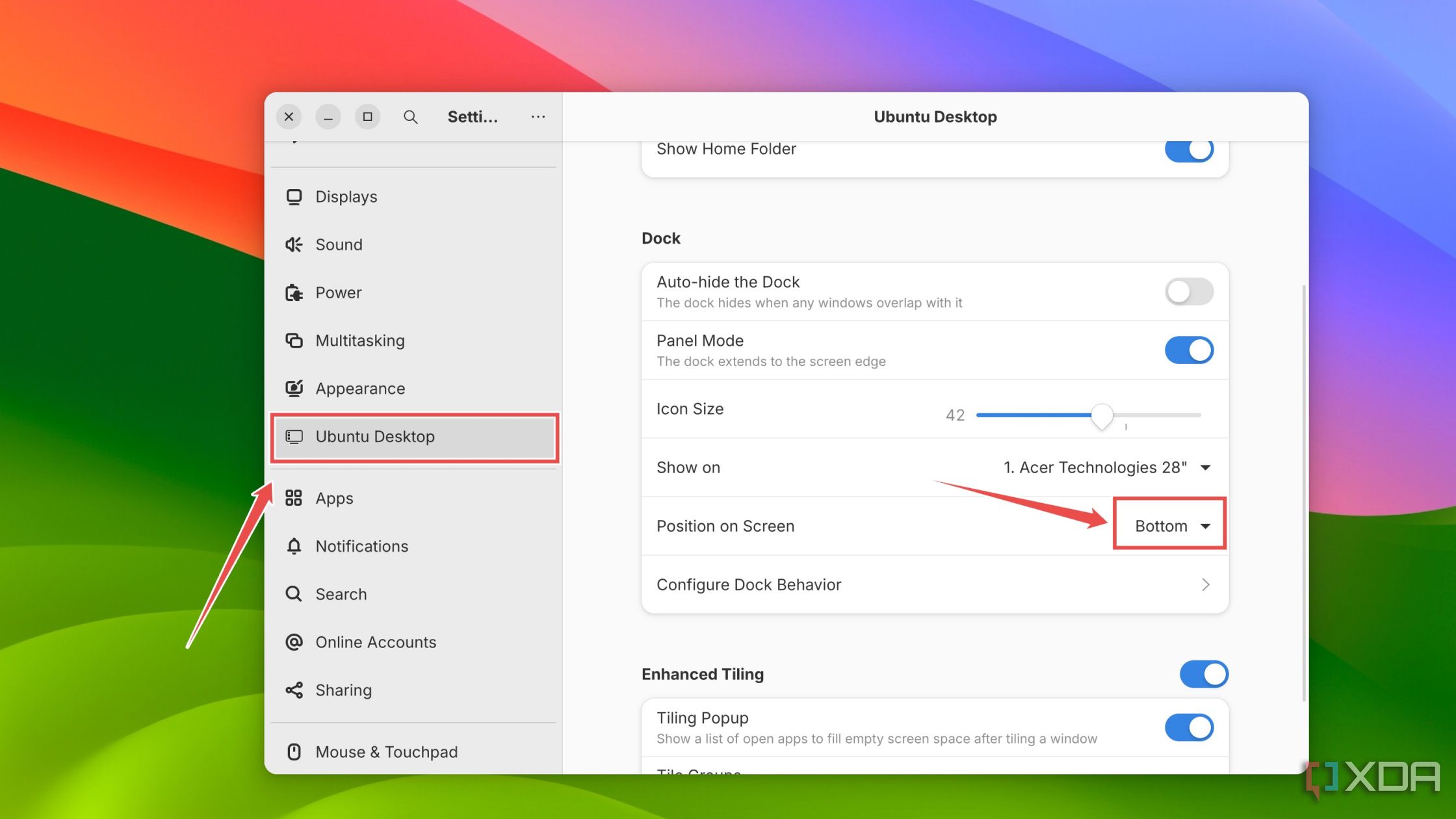
- Open Settings and navigate to the Ubuntu Desktop tab.
- Uncheck the toggle next to Panel Mode.
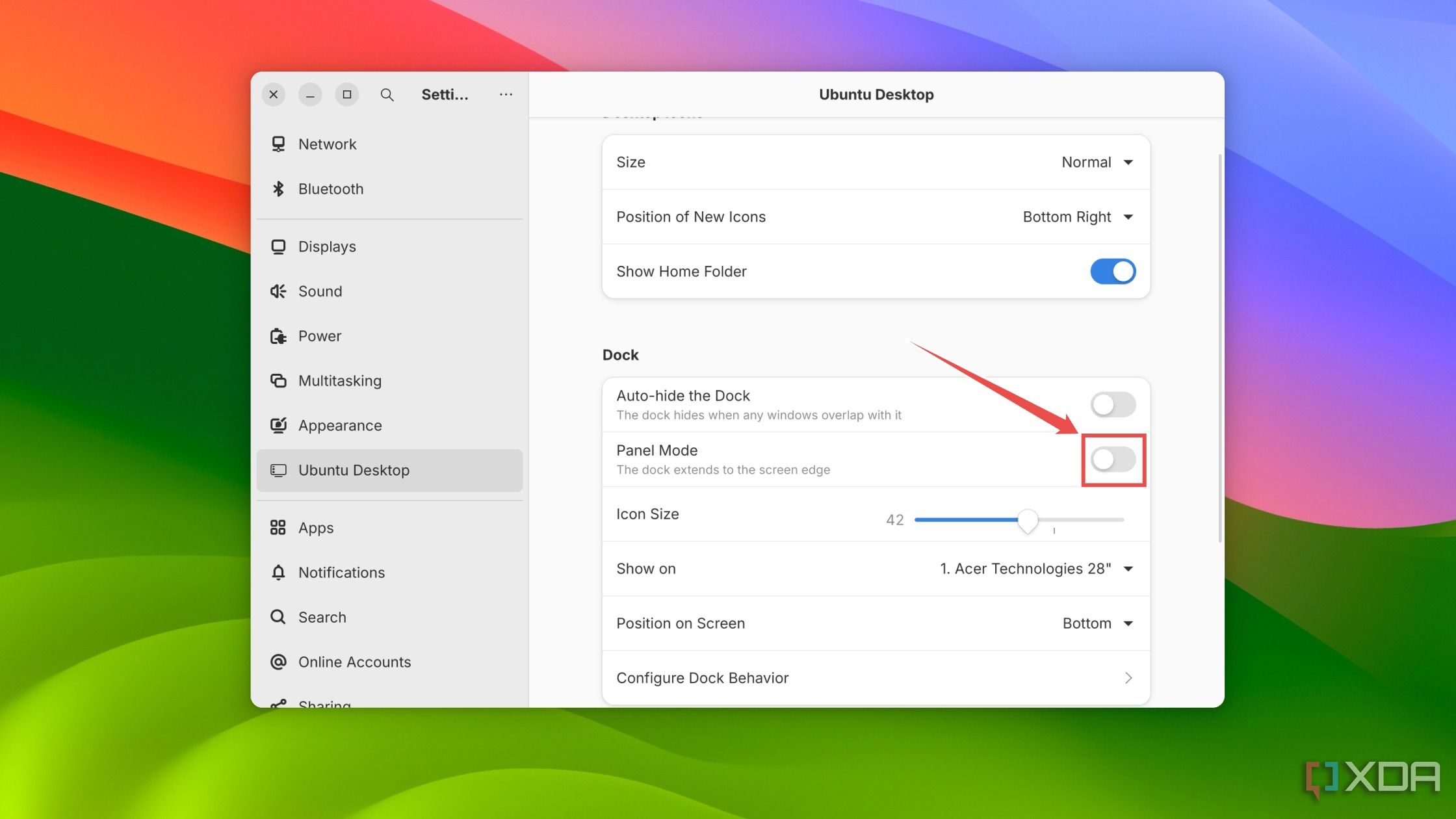
- Make sure the Position on Screen option under the Dock section is set to Bottom.
Conclusion
Those are all the steps you can take to make your Linux system look more like macOS. While your PC will resemble macOS for the most part, it’ll still run on the Linux kernel, meaning you won’t be able to get the full Apple experience unless you set up a macOS virtual machine or switch to a new MacBook or an iMac desktop.