Ultimate Guide: Installing Windows 11 24H2 on Unsupported Hardware (2024 Update)
Discover how to install or upgrade to Windows 11 24H2 on unsupported hardware. This guide covers clean installation and in-place upgrade methods, bypassing official requirements. Learn the risks and steps involved in getting the latest Windows features on older devices.

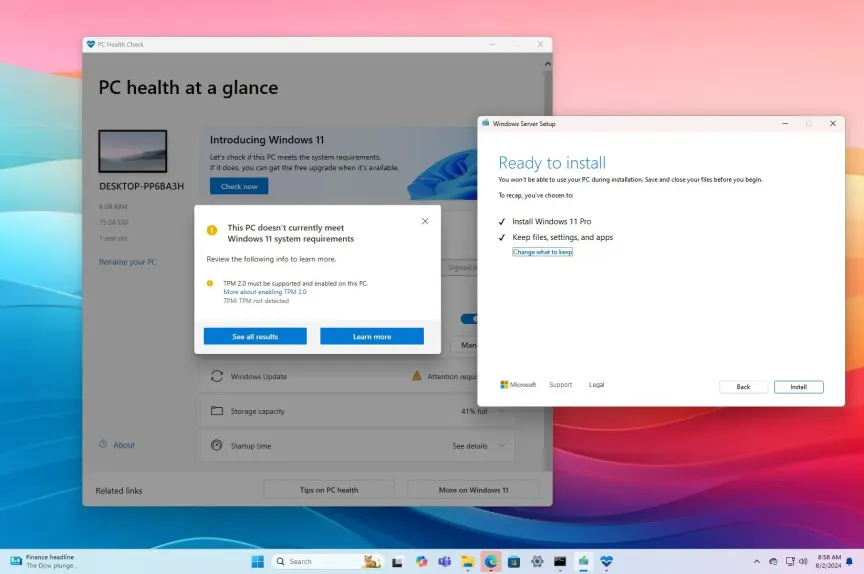
Windows 11 24H2 (2024 Update), set to launch on October 8, 2024, brings a focus on AI features like Recall (delayed). However, for computers running on hardware that doesn't meet the requirements, the update won't be available through standard channels. This guide outlines methods for installing or upgrading to Windows 11 24H2 on unsupported hardware.
Important: These methods may result in an "unsupported state" with potential for unexpected issues. Microsoft does not guarantee security updates, driver updates, or technical support for these installations. Proceed at your own risk.
Clean Install Windows 11 24H2 on Unsupported Hardware
1. Download the Windows 11 24H2 ISO file
- Visit the Windows Insider Program website and sign in.
- Select "Windows 11 Insider Preview (Release Preview Channel) – Build 26100.xxxx".
- Choose your language and download the 64-bit version.

2. Create Windows 11 24H2 Bootable Media
- Download and run Rufus.
- Select the Windows 11 24H2 ISO file.
- Choose "Standard Windows 11 Installation" under "Image option".

- Click Start and configure bypass options for hardware requirements and Microsoft account.

3. Windows 11 24H2 Unsupported PC Clean Install Process
- Boot from the USB drive and follow the installation prompts.
- When asked for a product key, select "I don't have a product key".
- Choose the appropriate Windows 11 edition.
- Delete existing partitions and install them on unallocated space.
- Complete the out-of-box experience (OOBE) setup.

Upgrade Windows 11 24H2 on Unsupported Hardware
This method allows for an in-place upgrade from Windows 11 23H2 or 22H2 to version 24H2.
1. Download Windows 11 24H2 ISO File
Follow the same steps as in the clean install process to download the ISO.
2. Windows 11 24H2 Unsupported PC Upgrade Process
- Mount the ISO file in File Explorer.
- Open Command Prompt as administrator.
- Navigate to the mounted ISO drive.
- Run the following command:
setup.exe /product server
Quick Tip: If the command does not work, open the "Sources" folder on the installation drive with the cd sources command and run the following command to restart the setup.
setupprep /product server

- Follow the on-screen instructions, selecting "Keep files, settings, and apps" when prompted.
Note: After you have completed the instructions, the setup will continue to upgrade to Windows 11 24H2, and because this is an upgrade, you will not have to go through the Out-of-box Experience, and your data and apps will be retained. However, the new configuration will function in an unsupported mode, which means you may be able to download system updates, but they are not guaranteed to work, and Microsoft will not provide support.
While this command works to update an older version of Windows 11 to version 24H2, it's important to note that it may not always work, and you may receive a notice stating that the setup was unable to detect whether your computer was compatible. You can repeat the command a few times, but if it does not work, you should try another way.
Last updated: September 29, 2024