How to Debloat Your Android Phone for Better Privacy and Performance
Learn how to remove unnecessary apps and services from your Android device using Universal Android Debloater. This guide will help you improve your phone's privacy, performance, and battery life without rooting or installing custom ROMs.

Introduction
Smartphones have become an essential part of modern life. Still, most Android devices come with a catch: they collect extensive data about you, building a profile that compromises your privacy and impacts your phone's performance and battery life.
The Easy Fix
While custom ROMs and rooting are options, they can void your warranty and be complex to implement. We'll explore a simpler method using Universal Android Debloater.
Steps to Debloat Your Android Phone
1. Enable USB Debugging
First, enable USB debugging on your phone. The process varies by device, so you'll need to look up specific instructions for your model.
2. Check Compatibility
Ensure your phone is supported by checking the Universal Android Debloater GitHub page. Most major smartphone brands are compatible.
3. Backup and Remove Accounts
- Backup all important data, including app data, contacts, photos, and videos.
- Remove associated accounts from your phone settings for added safety.
4. Install ADB on Your System
Linux
Search for android tools and install Android tools using your package manager.
Mac
Use HomeBrew to install Android Platform Tools:
brew install android-platform-tools
Windows
- Download Android tools from the official site HERE.
- Add the tools to your system path.
- Set up device drivers if necessary (usually not required for Windows 10 and later).
5. Remove the Bloatware
- Connect your smartphone to your PC and allow USB debugging when prompted.
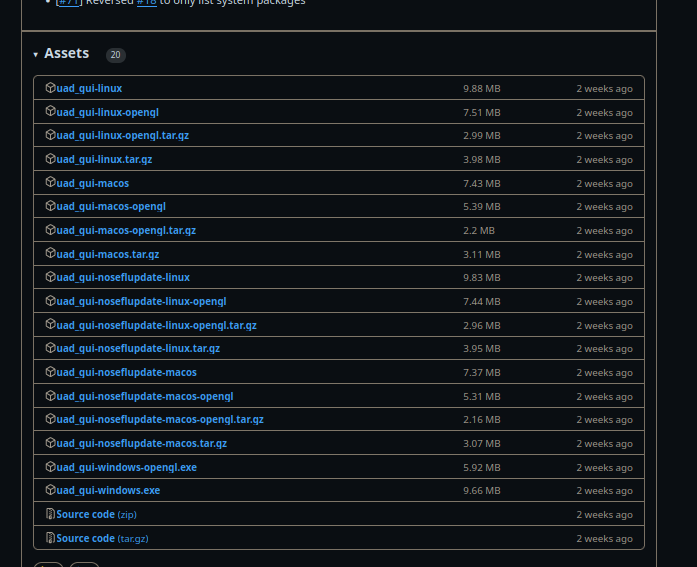
- Download and open Universal Android Debloater.
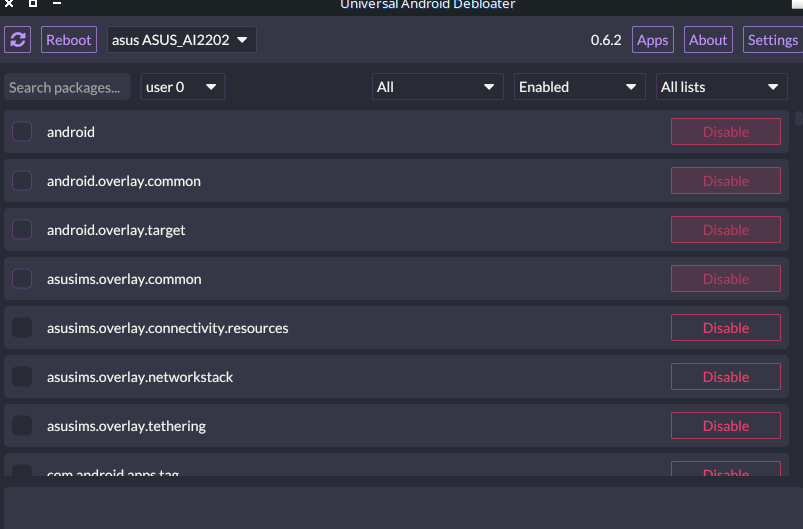
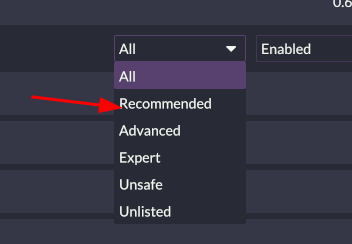
- Select "RECOMMENDED" mode.
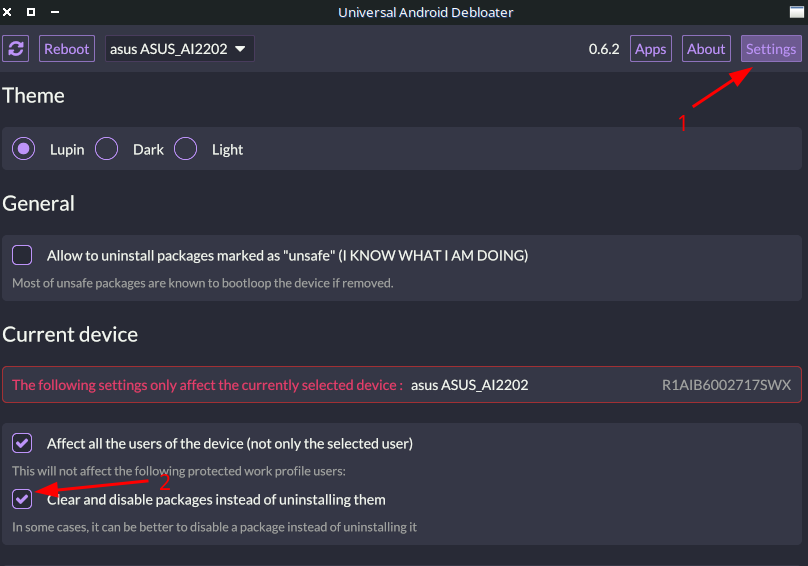
- Change the mode to "Disable" instead of Uninstall in the settings.
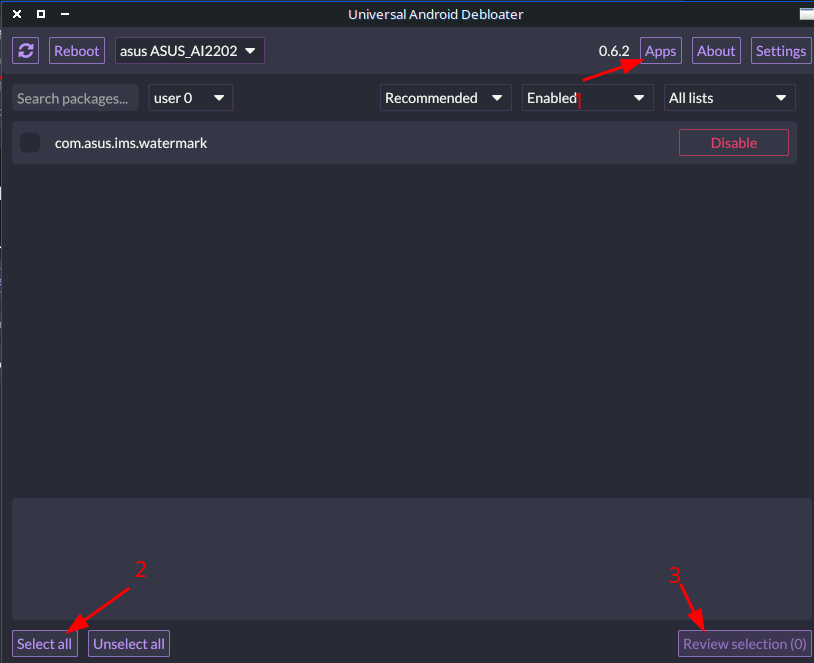
- Select all recommended apps and review your selection.
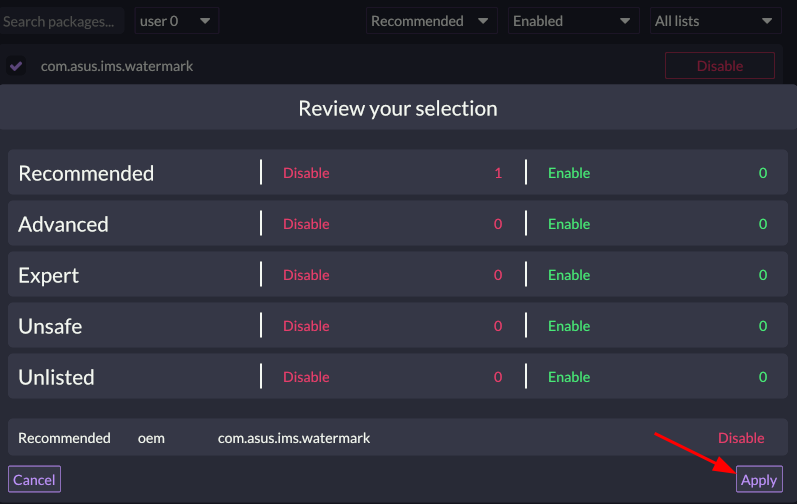
- Apply the changes.
- Restart your phone.
Advanced Option (Use with Caution)
For enhanced privacy, you can disable Google Play services. This may affect app notifications and functionality but will significantly improve privacy. To do this, disable only the specified package under "Expert" mode.

Conclusion
By following these steps, you can significantly improve your Android phone's privacy, performance, and battery life. Remember to proceed cautiously and stick to recommended options unless you're confident in making more advanced changes.