6 Commands to Clean Up Your Ubuntu System From the Terminal
Discover six essential commands to declutter your Ubuntu system and reclaim valuable disk space—all from the terminal! From clearing caches to removing unused packages and finding duplicate files, this guide ensures your system runs smoothly without relying on a GUI.


Maintaining a clutter-free computer ensures smooth performance and frees up space for new files and programs. Here are six effective commands to clean up your Ubuntu system via the terminal and some GUI alternatives for users less comfortable with command-line tools. These commands work on most Debian-based systems, including Linux Mint and Ubuntu, and have been tested to free up substantial disk space.
1. Uninstall Programs
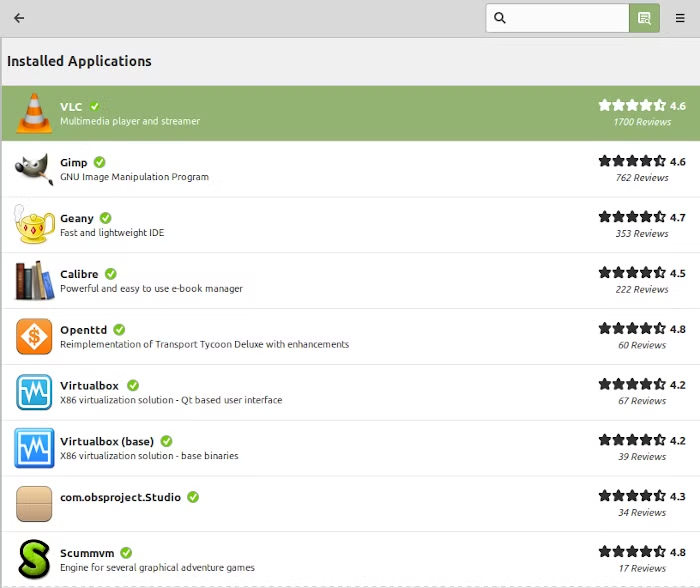
Begin by identifying and removing unnecessary programs. Generate a list of installed programs using one of the following commands:
dpkg --list
or
apt list --installed However, these lists can be overwhelming, as they include dependencies. A more user-friendly approach is to check installed programs via the GUI in your software center (e.g., Linux Mint's software center).
To remove programs using the terminal:
sudo apt-get remove program-name You can remove multiple programs by listing their names separated by spaces.
GUI Alternative: Open your system's Software Center, navigate to the Installed tab, and manually uninstall unused applications by clicking the "Remove" button.
2. Clean Up the APT Cache
Ubuntu and other Debian-based systems use APT to manage software. APT retains cached files, which can accumulate over time. Check the cache size with:
sudo du -sh /var/cache/apt To clear the cache and recover space:
sudo apt-get clean 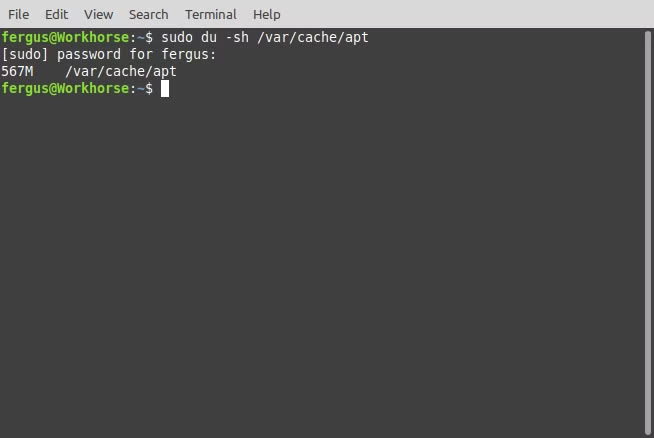
GUI Alternative: While clearing the APT cache directly from the GUI isn't standard, some software managers (like Synaptic) offer cache-cleaning options in their settings menus.
Optionally, disable automatic package caching to prevent this issue in the future.
3. Remove Unnecessary Packages
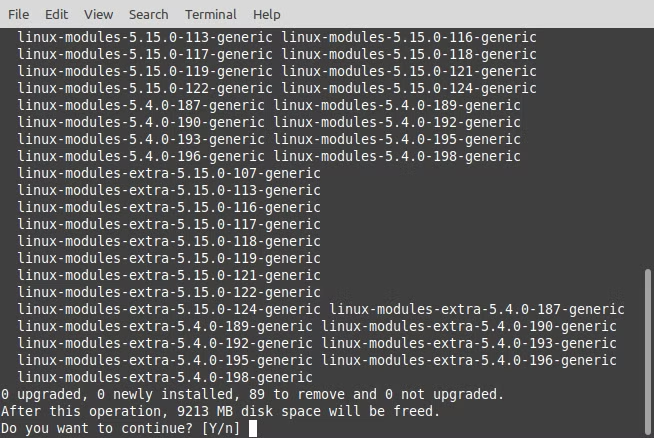
Unused package files, including outdated kernel updates, can consume significant disk space. Clean them up using:
sudo apt-get autoremove GUI Alternative: Use your Software Updater application, which often includes an option to clean up old packages and kernels after system updates.
4. Clean Up Journal Logs
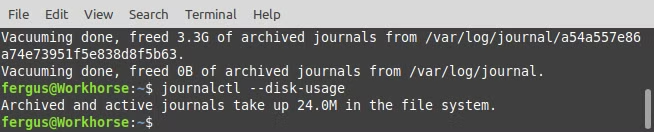
Ubuntu logs system actions and connections, storing them indefinitely in text files. Check their size with:
journalctl --disk-usage To clean logs, specify a time frame (e.g., 7 days):
sudo journalctl --vacuum-time=7d GUI Alternative: Applications like BleachBit can clean logs through a graphical interface.
5. Clear Your Thumbnail Cache
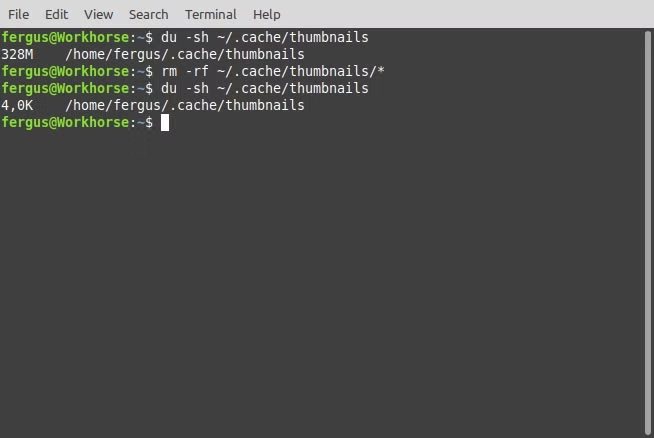
Ubuntu generates and stores thumbnails for images, even if the original files are deleted. Check the thumbnail cache size with:
du -sh ~/.cache/thumbnails To clear the cache:
rm -rf ~/.cache/thumbnails/*GUI Alternative: BleachBit can also clear thumbnail caches, making it a handy tool for users preferring GUI solutions.
6. Remove Duplicate Files
Ubuntu lacks built-in tools to find duplicate files, but several third-party tools can help:
- FSlint: A GUI tool that helps find duplicate files, empty directories, and more.
- Fdupes: A command-line utility for finding and removing duplicate files.
To install and usefdupes, run:
sudo apt install fdupes
fdupes -r ~/directory-path
Replace directory-path with the folder you want to scan. Review the duplicates list and manually remove unwanted files.
GUI Alternative: FSlint provides a graphical interface for finding and managing duplicates, ideal for non-technical users.
Final Thoughts
Using these commands and GUI alternatives, you can easily reclaim several gigabytes of storage on your Ubuntu system.